
Share your craft projects
Make new craft buddies
Ask craft questions
Blog your craft journey

LIttleBlackDuck
5781 posts
and
54 followers
in almost 4 years
in almost 4 years
Shaper Autopass Extension
Disclaimer,
- The main purpose of the review is to raise awareness of the product(s) and not necessarily to educate.
Boys and Girls,
I’m planning/have started a series of reviews about the Shaper Origin and associated accoutrements:-
1. Shaper Origin.
2. Shaper Plate.
6. Shaper Studio.
7. Shaper Trace.
8. Shaper Autopass Extension (this review).
This is how the Shaper WEB site sum up the Shaper Autopass Extension (SAE):-
- Increase speed and productivity
- Automatically ramp into each pass
- Automatically configure each pass depth
This review is only applicable for owners of a Shaper Origin, or those curious about what they are missing… bye Pottzy.
Offset is a feature of Origin that permits cutting a fraction inside/outside the actual perimeter by a small offset and take the finishing cut on the actual line with a 0.0 offset that will smooth out any potential discrepancies due to multiple depth cuts as the depth of a cut should not exceed the diameter of the bit.
An extension to the Shaper Origin software/firmware that can be purchased is called “Autopass”.
This bit of software is already bundled into the BenchPilot (BP) software, however, if operating outside BP, it is not available without a separate purchase.
It is only licensed for one Origin and can only be transferred, not shared, with another unit. To transfer, one must contact Shaper support.
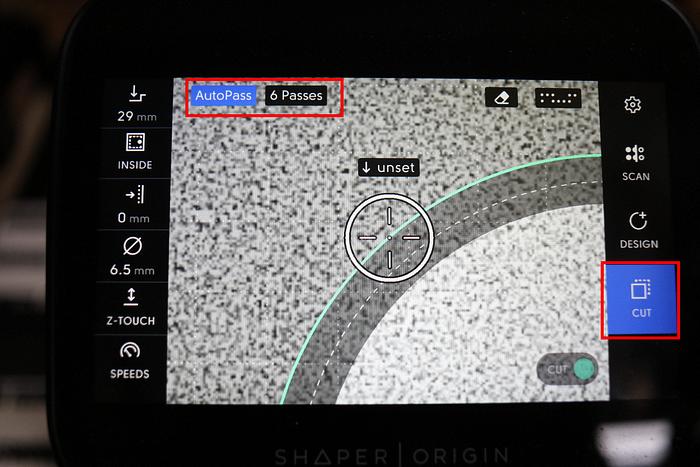
If available either through the BP of purchased, the option will be available on the Origin screen (1) and may be activated, using the touch screen, to break the cut into multi passes.

When using the Origin, it is recommended that a depth plunge does not exceed the diameter of the router bit. Consequently, it's suggested to perform multi depth passes for cuts deeper than the router bits diameter.
Without Autopass (1… mine is disabled for this demo ),

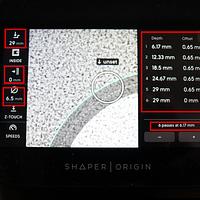
and if you wanted to cut through a 18mm piece of timber using a 6.35mm bit (3), you would need to plunge around 19mm (2) for total separation.
The first cut would be nominally set at 6.5mm (2)

the second at 13mm

and the 3rd cut at 19mm

None of which had a prior offset for a fourth finishing cut. If required the offset would need to be changed and a fourth cut executed with zero offset.
Now let’s invoke Autopass by touching the Autopass button (1) on the screen,

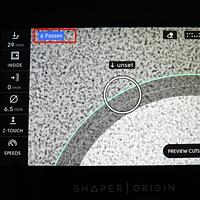
highlighting the Autopass “button” (1) and by touching the “#” Passes button (2)

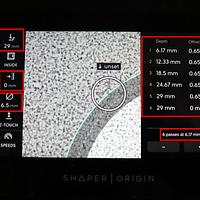
the passes screen is displayed,

… the number of passes is automatically calculated based on the overall depth of cut (1) and the bit diameter (3), displaying the cuts to be performed (4) and a summary (5). Note that the offset (2) is set to 0, however, the offset is incorporated in each pass in table (4).
Depending on one’s druthers you can increase/decrease the number of passes by pressing the appropriate button (6).
Each time the increase (+) button (2) is pressed,

the number of passes is incremented by one (2) and the passes matrix updated accordingly (1),

with a new depth of cut… the offset will stay the same.. No settings on the left-hand columns are changed.
A negative (-) press will decrement the passes by 1 (DOH!),

and on exit the new passes will be displayed (1),

Note that this action could/would conflict the “depth rule” forcing a 9.5mm plunge with the 6.35mm bit… the plunge is not the issue, but lateral bit movement may be compromised. This is the issue with manually settings without Autopass.
When you turn on Origin with the stand alone Autopass and start cutting the circle, once a pass is completed, the bit is automatically lowered to the next depth and you continue on the second next path of the circle until the final path where the bit is left at the same height but the offset is removed out of that pass.
You have to circle route according to the number of passes and if execution is interrupted, on resumption, the Origin will prompt the starting point and will continue at the last settings as would have been done with continual processing.
Progressive warnings/milestones are displayed (1 - "Approaching Finish Pass"),
Progressive warnings/milestones are displayed (1 - "Approaching Finish Pass"),

With the BP, all this is automatic and the number of passes are transparent to the user.
Origin highlights progress on its screen by different path hues (blue shading in above picture).
For all the wretches not having Autopass, to can make the first pass on the Origin with a negative/positive offset/depth changing the details real time with each pass and setting the last pass with 0 offset on the Origin. Just make sure you offset in the right direction, as offsets between inside and outside cuts are opposite (+ or -). These changes need to be manually set before each pass.
You can stipulate multi passes using Studio, however, with my limited testing, I could only get 2 passes working.
- For the perimeter, created more same sized boxes according to the number of passes you plan, using the same dimensions,

- In the PLAN screen, select one of the perimeters (1) and set its depth and offset to +0.5 (2) (or what strikes your fancy… + for outside cut, - for inside cut)

- Select the next perimeter setting the same offset but next depth, till the last cut, where you set the offset to 0.0 (2)

End of the Shaper spruiking… AMEN!

Don’t be crafty Craftisians,... SHARE your craft!
If your first cut is too short... Take the second cut from the longer end... LBD
6 Comments

damn i didn't even get a chance to say i wasn't interested. 😞
working with my hands is a joy,it gives me a sense of fulfillment,somthing so many seek and so few find.-SAM MALOOF.
Just giving you more time to spend on your short blogs.
If your first cut is too short... Take the second cut from the longer end... LBD
I am a huge fan of AutoPass
short blogs .....? duck i dont do any blogs period !!!!
working with my hands is a joy,it gives me a sense of fulfillment,somthing so many seek and so few find.-SAM MALOOF.
Auto pass is great!!
Ryan/// ~sigh~ I blew up another bowl. Moke told me "I made the inside bigger than the outside".
Mea culpa... short POSTS.
If your first cut is too short... Take the second cut from the longer end... LBD
