In justification of the generous 5* review, I have only played with the Plate, toyed with the setup of the WorkStation, executed a simple process with the BenchPilot and watched quite a few videos presented by the Shaper team.
Boys and Girls,
I’m planning/have started a series of reviews about the Shaper Origin and associated accoutrements:-
According to the Shaper WEB site, the following is their overview of the workstation,
BenchPilot is like autopilot for Origin: clip Origin into BenchPilot to turn it into a hands-free milling machine, capable of vertical or horizontal cutting. Let BenchPilot drive Origin so you can focus on other tasks at hand. Then simply unclip Origin to use it elsewhere when needed.
Now don’t go rushing out to buy a BenchPilot (BP) unless you’ve already bought, an Origin beforehand or intend to buy one after the kids finally get a job and SWMBO a second one.
Furthermore, only read on if the concept has tweaked your interest, as I have only tested it and reported here my experience with a simple project, however, the only difference is that other projects will be more complex design/execution, but the concepts will be the same as my pissant attempt.
After purchasing the Origin/WorkStation/Plate combo,
I unpacked it, had a dry run without powering the router on, finished up putting it into hibernation till I read that another user (R ’Gi, I think), hunched over the Origin for nearly 30 minutes to do a job. I couldn’t imagine my weary body endure that ordeal, so when the BP was made available here in Aussieland, I decided it was the only way that I could de-hibernate my Origin.
After 6 months between placing the order and picking it up, it was time to set it up and fire up the Origin… nothing to do with setting it up outside my open fire place
The kit came in many parts, carefully boxed and the assembly well documented. Shaper even made a comprehensive assembly video, so even this lame brain had no issues putting it together.
My immediate reservation was that the assembly doco concentrated on combining the WorkStation (WS) with the BP,inferring limited workpiece size, however, since then I’ve found that with a bit of manipulation it can be used on larger pieces… I can’t/won’t elucidate here… RTFM, watch Shaper BP videos or wait for my blog after I master it.
This review will be limited to what is offered in the kit combined with the WS), and how I understand it works.
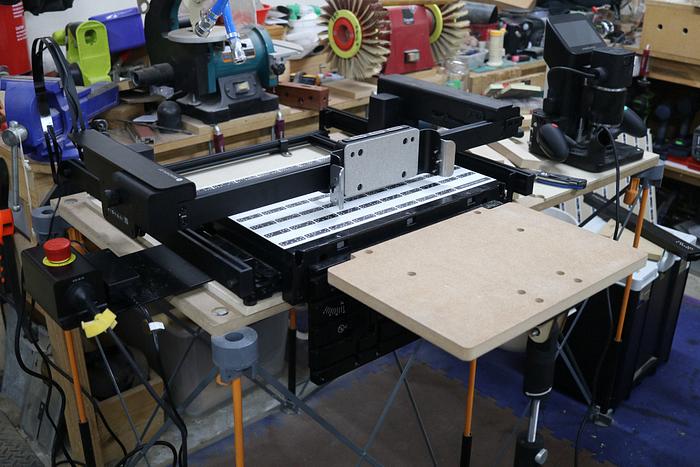
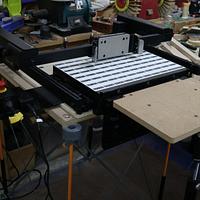
Thinking I don’t have enough room in the workshop, I set up a Centipede and Bora benchtops on my back enclosed patio to hold the bench pilot. This may be temporary as the space required is not much bigger than the WS that I have been storing on a workbench in the workshop for the past 6 months,
… I’d just need to find a storage spot when not in use and need the workbench for other projects.
Once assembled and the WS fitted,
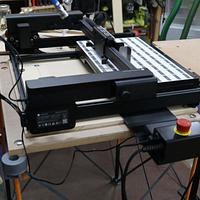
the harness was installed on my Origin with a quick release coupling (1),
and test fitted to the BP,
… i was gruntled, again.
As I was packing up for the day, that bloody Origin with the harness, wouldn’t fit into the systainer… well it did sort of fit, but I couldn’t close the lid.
Went searching and found a SVG specifically designed to customise the foam cradle for an Origin (Gen 2),
Removed and taped the foam to the WS platform and used the Origin to hog out the “blockage”, replaced it in the systainer and the lid now closed .
Intimidated by my home invasion about 2 weeks ago in the same area, I was sceptical about its exposure, packed it up and migrated back to the workshop,
better to be crammed in than have it missing through theft.
The FM after RT, suggested the BP be fastened to the workbench. I opted to use 20mm holes on a 12mm MDF base and my TSO loc-dogs, to fasten it to my tabletop,
Attached my WSupgrade platform (review to follow), and double sided taped (first use) a scrap piece of MDF to the platform
… scanned the dominos and added the picture of the workpiece to the scan, so it showed up in the screen for better SVG visual placing guide.
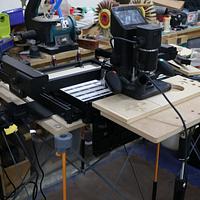
Connected the Origin to the BP and was immediately presented with a welcome tutorial,
Flipped through the tutorial and loaded my test SVG
which was designed in CorelDraw and fine tuned in Shaper Studio (review will follow)… (the text “Alex Test 1” is non-processable doco/comment).
Once placed, the viewfinder will display the job, including the actual added scan of the workpiece,
While the Origin is not connected, the menu displays “Cut” at the bottom right,
and once connected to the BP, the option changes to “Pilot”
After pressing PILOT on the touch screen, in the next screen presented, as you hover over each cut, its details will be displayed on the left detailing things like depth of cut (1), cut position (2), offset (3), number of passes (4) and more, all extracted out of the SVG file. If the number of passes (4) is touched on the screen, the following is displayed outlining each pass’s details,
The built in “Autopass” feature of BP, has calculated 2 passes (1), with the option to up/decrease (2) the passes. It also outlines the depth and offset for each pass (3 & 4). Usually all but the last pass (3) are made with an calculated offset with the finishing pass (4) set to a zero offset.
Returning to the previous screen, selecting “Preview cuts” (5),
there is a display of the number of cuts to be processed (1),
and to change/organise them, you must select “Edit Selection” (2) to select the cuts for processing and what deselected items to bypass for potential alternative processing.
I went in and deselected the “Alex” at the bottom that I intend to engrave using a “V” engrave bit that was to be changed over after the 6.35mm did its job.
In the following screen you need to move the Origin (in the cradle) around till it touches an item you don’t want processed (1)
and once highlighted, press the Deselect button (2) to deselect it.
In the next screen that item is deselected, the “Confirm selection” counter (4), has been decreased by 1 and the previous deselected item (3) has been blanked out,
You can repeat this process until all the non-wanted items have been deselected and you hit the “Back” button (5).
Having deselected 2 items (reflected in the display) the “Confirm selection”MUST be pressed,
Otherwise, your deselections are not registered and the full 20 items will still be processed,
You must hit the confirmation after deselection your intentions (8 deselected),
which will be reflected in the following screen (1),
... then it’s a case of doing a Z-touch (2) to calibrate the distance of the bits tip to the workpiece, turning the motor on and hitting the Start Cut button (3).
The BP took control started to make the cuts… OOPS!!!, what the hell is it doing??? Before hitting the panic button which shuts everything down,
I let it make a mess initially, till it settled down to automatically display its progress… remaining time on the screen (1),
and the number of cuts remaining (2). It also displays the speed (mm per minute) (3) which can be adjusted by an external accelerator knob on the BP (4),
depending on the progress and your preferences/druthers/judgement.
The result immediately off the bits after completion,
and after a brush up with a sanding block, foam pad and brass brush,
The intention was to make some circles with different depths and a perimeter cut out that I only set to 1mm deep to preserve the scrap for further flipside tests.
Now for the OOPSIES I made. Bear in mind, this was my pilot run and I can only learn and pass on to potential users.
Looking at the progress display of 20 scheduled cuts, Some donkey forgot to press the “Confirm selection” button, and the “Alex” designed to be carved with a “V” bit was carved with the 6.35mm flat bottomed bit.
When I initially deselected the 8 components that made up the “Alex”, I missed 2-minute components that can be seen by 2 green dots on the screen, leaving 12 components, which when deleted (1) as an afterthought, only left 10 components (2), I am guessing this may have been a fault with the built-in font in Shaper Studio.
One of those 2 components must have had a depth of cut set right through the MDF scrap I was using
Sorry about such a prolonged post, but it was as much for my edification as for informing others.
More Shaper stuff to come… thanks for watching.
Don’t be crafty Craftisians,... SHARE your craft!
If your first cut is too short... Take the second cut from the longer end... LBD
Tagging a marvelous piece of figured MDF with you name shows your dedication to the craft and your respect for the materials.
Loving these "tutorials", I'd never have dove in to the 10K videos to see what's what so good to get the viewpoint of a first timers impressions and process!
yeah I saw that on the second read, a lot to absorb and understand without the "hands On" practice, but I eventually got there a Vee bit was mised on the first read
RobsCastle ..... In your our workshop have you got a welder?
Please ask me more questions... while fishing this out of a cupboard for a picture I found I had this I forgot about, I even managed to acquire the aluminium attachment for my welder (mig/arc/aluminium)... Can arc, suck at MIG. Haven't tried aluminium, always cut to decrease not weld to grow... and would have to RTFM.
If your first cut is too short... Take the second cut from the longer end... LBD





.png)